Parts Tracker Overview
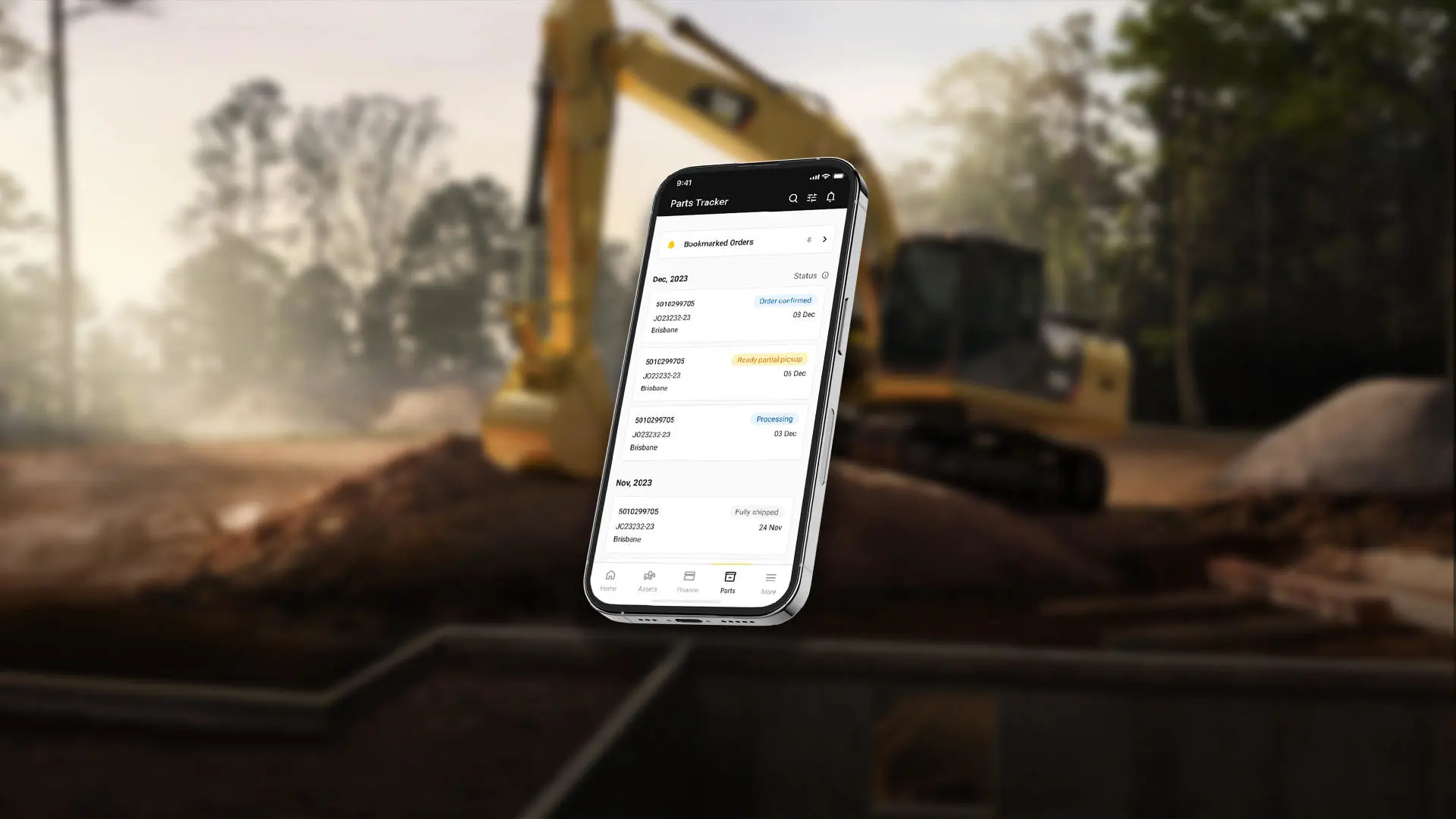
Access Parts Tracker from the top menu to track and manage all your orders in one place. The homepage displays four quick snapshots (Open sales orders, Ready for pickup, Shipped, and Backordered) that you can click to instantly filter results and focus on the most relevant updates.
Finding and Viewing Orders
Use the search bar to find orders by sales order number (from your invoice, email, or SMS) or purchase order number, or apply filters for status, delivery method, or warehouse. If your order doesn’t appear immediately after placing it, allow up to an hour for it to become visible. Click any order to open it, where the Summary tab shows key details including pickup location, the Parts tab shows real-time status of each item, and the Invoices tab displays related invoices (if you have access).
Understanding Order and Part Statuses
Orders move through statuses such as Order placed, Processing, Ready for pickup, Picked up, Partially shipped, and Fully shipped to reflect overall progress. Within each order, individual parts may have their own statuses like Backorder, Transfer, Waiting for processing, Processing, Ready for pickup, Picked up, and Shipped. This means a single order can contain multiple statuses at the same time — always check the Parts tab for the most accurate view.
Parts View and Tracking Across Orders
The Parts view allows you to see all parts across all your orders in one list, grouped by status and sorted by most recent updates. This is useful when you don’t know the order number or need to track a specific part. You can search, filter, and click into a part to see more detail and link back to the associated sales order.
Pickup, Delivery and Warehouse Information
The warehouse refers to the location where parts are either dispatched from or collected. Pickup location details are available in the order Summary tab. When parts are shipped, you may also see a shipped date and tracking link (if provided by the courier).
Notifications and Bookmarks
HD360 can notify you when your order progresses, such as when items are ready for pickup or shipped. You can manage your notification preferences using the bell icon. Bookmarking an order allows quick access later and automatically enables notifications for that specific order, overriding your general settings.
Search and Filtering Tips
You can search using sales order number, purchase order number, delivery method, warehouse, or order status. To refine your view further, combine search with filters or switch between customer accounts to ensure you are viewing the correct data.
View by Parts
The Parts view shows all parts across your sales orders in a single list, sorted by the most recently updated and grouped by status so you can quickly see what’s ready, in progress, or delayed. You can access it by navigating to Parts Tracker and selecting the Parts tab, then refine the list using filters or search by part name, part number, sales order, purchase order, or status. Each row includes key details such as last updated date, part name and number, associated sales and purchase orders, quantity, and status, and can be clicked to reveal more detail and link back to the full sales order. You can also use the snapshot tiles (Open, Ready for pickup, Shipped, Backordered) to instantly filter results. Status filters help you focus on specific stages like Processing, Transfer, Backordered, Waiting for processing, or actionable states like Ready for pickup, Picked up, or Shipped. If needed, you can export the list to a CSV file from the top-right (desktop only), using filters beforehand to customise your export.